Inline Markdown Editing, Mermaid and LaTeX Rendering
AS Notes includes a built-in inline Markdown editor that renders formatting directly in the text editor, similar to Typora. Standard Markdown syntax characters are replaced with their visual equivalents as you write, giving you a clean reading experience without switching between edit and preview modes.
Three-State Visibility
The inline editor uses a three-state system to manage syntax visibility:
| State | When | What you see |
|---|---|---|
| Rendered | Cursor is on a different line | Clean formatted text with syntax hidden |
| Ghost | Cursor is on the same line, outside the construct | Syntax characters at reduced opacity (30% by default) |
| Raw | Cursor is inside the construct | Full Markdown source |
This cycle lets you read comfortably while always having access to the raw Markdown when you need to edit.
Example with bold text:
- Rendered: The word appears bold with no asterisks visible
- Ghost: Move your cursor to the same line and faint
**markers appear around the bold word - Raw: Click directly on the bold word and the full
**bold**syntax is shown
Supported Constructs
The inline editor renders the following Markdown constructs:
Text Formatting
- Bold (
**text**) - rendered as bold text - Italic (
*text*) - rendered as italic text - Bold italic (
***text***) - rendered as both Strikethrough(~~text~~) - rendered with a line through itInline code(`code`) - rendered with code styling
Headings
Headings (# H1 through ###### H6) are rendered at progressively larger font sizes with bold styling. The # markers are hidden when rendered, visible at full opacity when the cursor is on the heading line (heading markers do not use ghost-faint like other constructs).
| Level | Font size |
|---|---|
| H1 | 180% |
| H2 | 140% |
| H3 | 120% |
| H4 | 110% |
| H5 | 105% |
| H6 | 100% |
Heading colours can be customised per level in Settings.
Links and Images
- Links (
[text](url)) - syntax hidden, link text shown with link colour. Hover to preview the URL. Ctrl+Click to navigate. - Images (
) - hover to see an image preview. Local images render inline in the document when standalone (see below).
Inline Image Rendering
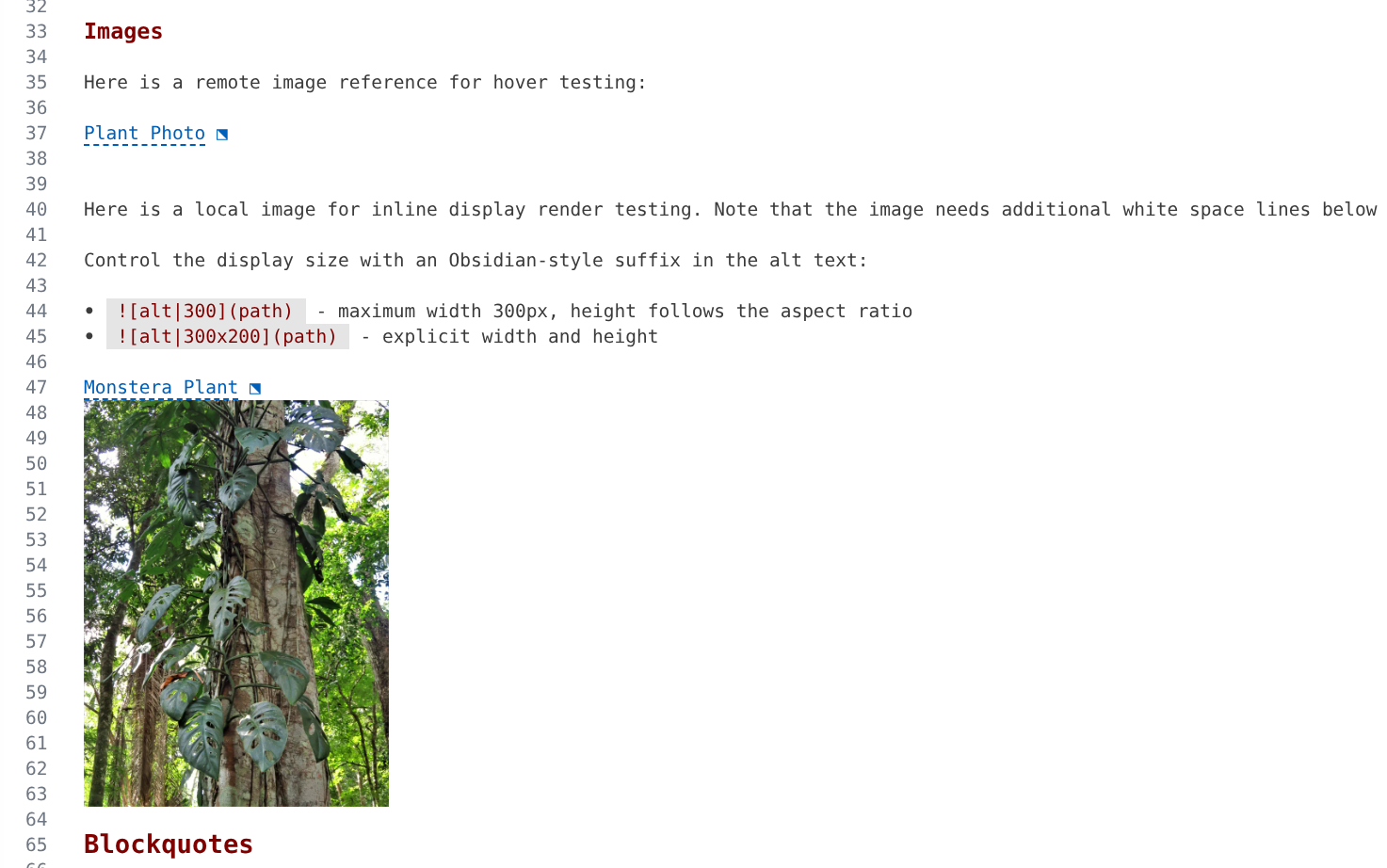
A local image whose tag is alone on its line and followed by at least one blank line renders directly in the document - no hover needed. The rendered alt text stays visible as a link on the image's own line (hover it for the preview popup, as usual); the picture draws into the blank lines below it (the granted space), shrinking to fit, with the last blank line kept clear as a margin so the picture never touches the following text. Because VS Code cannot grow a single line's height, the blank lines are what give the picture room - want a bigger image? Add more blank lines below it.
Control the display size with an Obsidian-style suffix in the alt text:
- maximum width 300px, height follows the aspect ratio- explicit width and height
The size hint is a maximum in the editor: the image never grows beyond the granted space and never overlaps text. In published HTML the hint is applied exactly, as width/height attributes with a clean alt.
Notes:
- Move the cursor onto the image line (or into the blank lines under the picture) to hide the picture and edit the raw syntax - the same behaviour as Mermaid blocks.
- Only local files render inline (relative or absolute paths). Remote
http(s)images keep the hover preview. - Mid-sentence images and images with no trailing blank line keep the hover preview.
- Supported formats: PNG, JPEG, GIF, WebP, BMP, SVG. Animated GIFs render their first frame (the hover preview still animates).
Blockquotes and Horizontal Rules
- Blockquotes (
> text) - the>marker is styled, text is indented - Horizontal rules (
---or***) - rendered as a visual separator
Lists
- Unordered lists (
- item) - the-marker is replaced with a styled bullet - Task lists (
- [ ] item/- [x] item) - rendered with a styled bullet and checkbox. Click the checkbox to toggle it. - Ordered lists (
1. item) - numbers are styled
Code Blocks
Fenced code blocks (```) display the language label at reduced opacity when rendered. Move the cursor inside the block to see the full raw source.
Tables
GFM pipe tables are rendered with visual grid styling. Move the cursor inside the table to see the raw pipe syntax. AS Notes' table slash commands (add/remove rows and columns) work alongside the visual rendering.
YAML Frontmatter
Frontmatter blocks (--- delimiters and content) are rendered at reduced opacity when the cursor is elsewhere. Move the cursor inside to see the full raw YAML.
Emoji
Emoji shortcodes like :smile: or :seedling: are rendered as their emoji characters. The shortcode is visible in ghost/raw state.
Mermaid Diagrams
Mermaid diagram code blocks (```mermaid) are rendered as inline SVG diagrams. Hover over the code block for a preview.
The examples below are rendered from mermaid code blocks in the markdown document from which this document is generated.
```mermaid
graph TD
    A[Buy Plant] --> B{Is it alive?}
    B -->|Yes| C[Water it]
    B -->|No| D[Try again]
    C --> E{Still alive?}
    E -->|Yes| C
    E -->|No| D
```

```mermaid
flowchart LR
    Sun --> Leaves --> Photosynthesis --> Growth
    Water --> Roots --> Growth
```
graph TD
    A[Buy Plant] --> B{Is it alive?}
    B -->|Yes| C[Water it]
    B -->|No| D[Try again]
    C --> E{Still alive?}
    E -->|Yes| C
    E -->|No| D
flowchart LR
    Sun --> Leaves --> Photosynthesis --> Growth
    Water --> Roots --> Growth
Math / LaTeX
Inline math ($...$) and display math ($...$) are rendered using KaTeX/MathJax. Enable or disable via the as-notes.inlineEditor.math.enabled setting.
The following code renders the math blocks below:
Inline math: the growth rate is $G = k \cdot L \cdot W$ where $L$ is light and $W$ is water.

Display math block:

$
\frac{dP}{dt} = rP\left(1 - \frac{P}{K}\right)
$
Inline math: the growth rate is where is light and is water.
Display math block:
GitHub Mentions and Issues
@username mentions and #123 issue references are rendered with styled decorations. Enable or disable via the as-notes.inlineEditor.mentions.enabled setting.
Toggle
Toggle the inline editor on or off using any of these methods:
- Command Palette: Run AS Notes: Toggle Inline Editor (
Ctrl+Shift+P) - Editor title bar: Click the eye icon
- Setting: Set
as-notes.inlineEditor.enabledtofalsein VS Code settings
When toggled off, all inline decorations are removed and you see plain Markdown.
Outliner Mode
When Settings|outliner mode is active, the inline editor works alongside it. Bullet markers and checkbox syntax are styled (bullets show as bullet, checkboxes show bullet + checkbox graphic) rather than being hidden. The three-state visibility still applies to inline formatting within bullet content (bold, italic, code, links, etc.).
Conflict Detection
If you have the standalone Markdown Inline Editor extension installed, AS Notes will show a warning notification on activation. Running both will cause duplicate decorations and broken checkbox toggles. The notification offers two options:
- Disable Extension - disables the standalone extension
- Disable Inline Editor - disables the AS Notes inline editor, keeping the standalone extension active
Settings
All inline editor settings are under the as-notes.inlineEditor namespace. See Settings for the full list.
Key settings:
| Setting | Default | Description |
|---|---|---|
as-notes.inlineEditor.enabled |
true |
Master toggle |
as-notes.inlineEditor.decorations.ghostFaintOpacity |
0.3 |
Opacity for ghost-state syntax |
as-notes.inlineEditor.links.singleClickOpen |
false |
Open links with single click |
as-notes.inlineEditor.emojis.enabled |
true |
Render emoji shortcodes |
as-notes.inlineEditor.math.enabled |
true |
Render math expressions |
as-notes.inlineEditor.images.enabled |
true |
Render standalone local images inline |
as-notes.inlineEditor.images.maxHeightLines |
20 |
Maximum inline image height, in editor lines |
as-notes.inlineEditor.colors.* |
(theme) | Override heading, link, code colours |
Troubleshooting
Inline editor not active: AS Notes must be in full mode (.asnotes/ directory exists). Check the status bar - it should show "AS Notes" not "AS Notes (passive)".
Decorations not appearing on a file: The inline editor only activates for Markdown files within the AS Notes root directory. Files outside the root (e.g. a README.md at the workspace root when rootDirectory is set) are not decorated.
Performance on large files: The inline editor uses a parse cache and incremental updates. If you notice lag on very large files (1000+ lines), toggle the inline editor off for that session.
Heading sizes not rendering: This is a known VS Code platform behaviour where the fontWeight decoration property interferes with CSS font-size injection via textDecoration. AS Notes works around this by injecting font-weight through the CSS string. If heading sizes still don't appear, please report the issue with your VS Code version.